> ## Documentation Index
> Fetch the complete documentation index at: https://docs.btsscorp.com/llms.txt
> Use this file to discover all available pages before exploring further.
# Connect to Claude
> Query your Oracle Fusion data from Claude over MCP — governed, within your own Oracle security
ORCA lets you work with your Oracle Fusion (SaaS) data in plain language — every request is **governed** and runs **within your own Oracle security**. Whatever your role, ORCA puts our consultants' expertise on tap: the same checks, lookups, and playbooks a seasoned Oracle practitioner would run — a question away, no ticket, no wait.
The same governed agent — **same skills, same consent rules** — is reachable from **Claude Desktop** or **Claude Code** over MCP (Model Context Protocol). Connect it to Claude once and just ask.
## Prerequisites
In **Settings → Oracle Connections**, flip the **MCP** toggle on the connection you want to expose.
ORCA shows your MCP URL in the app (it looks like `https:///api/mcp`). There's **no token in the URL** — you authenticate by signing in to ORCA.
## Claude Desktop
In Claude Desktop, open **Settings**.
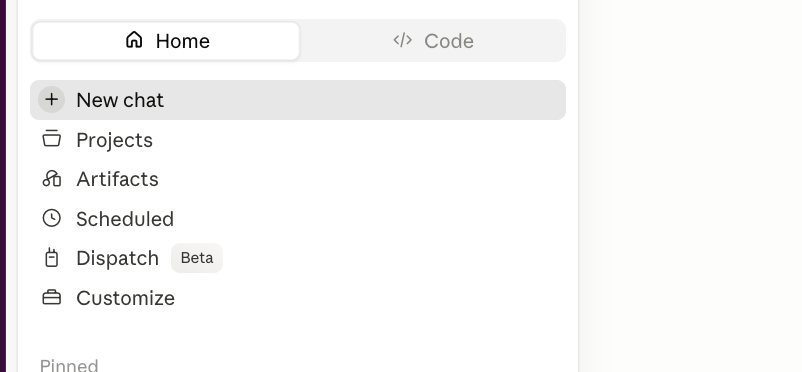 Select the **Connectors** section.
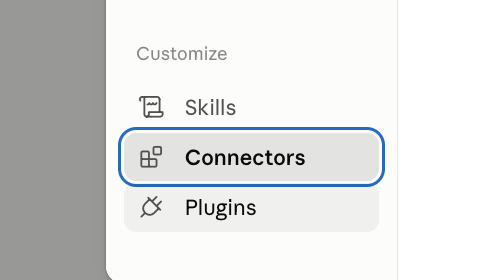 Click **Add custom connector**.
 Give it any name you like — **ORCA** works well (the name is just a local label). Paste your MCP URL, click **Add**, then **Connect**.
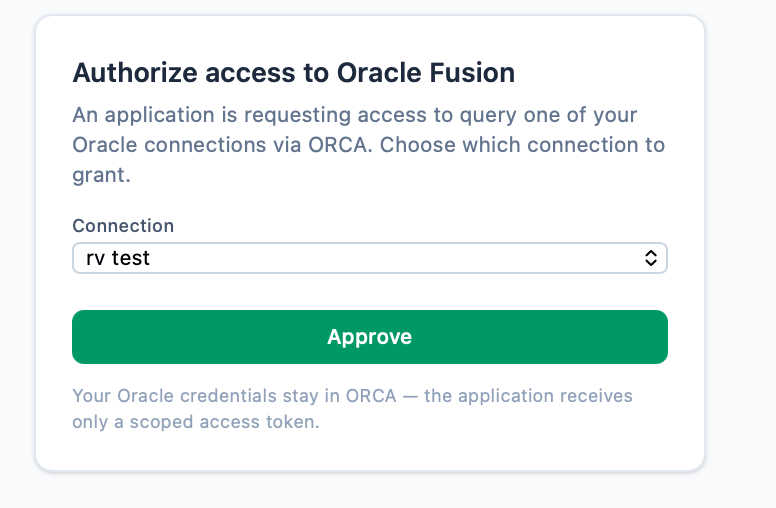
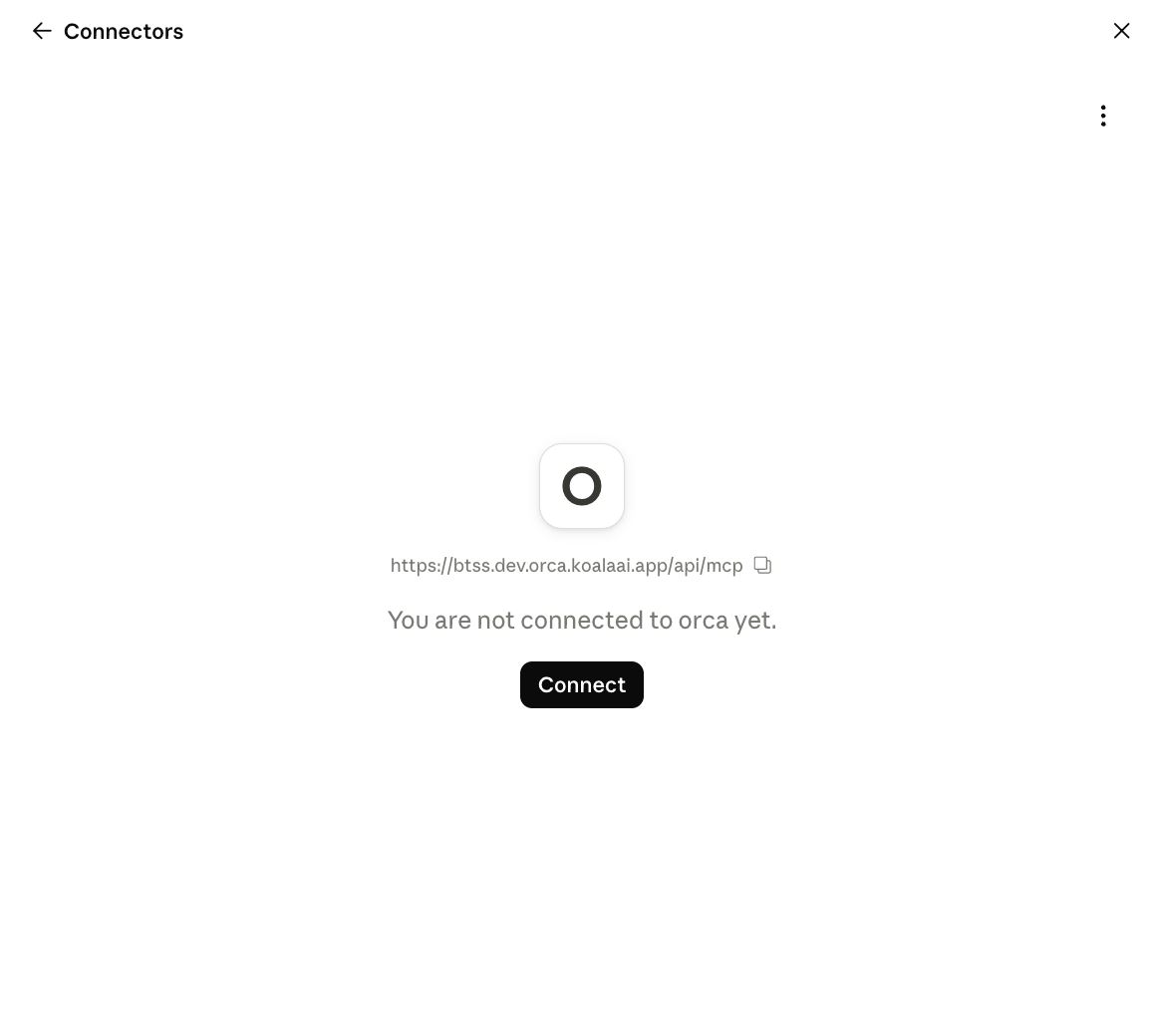 Claude opens your browser. Sign in to ORCA, then pick the Oracle connection to grant and click **Approve**. Your Oracle credentials never leave ORCA — Claude only receives a short-lived, scoped token.
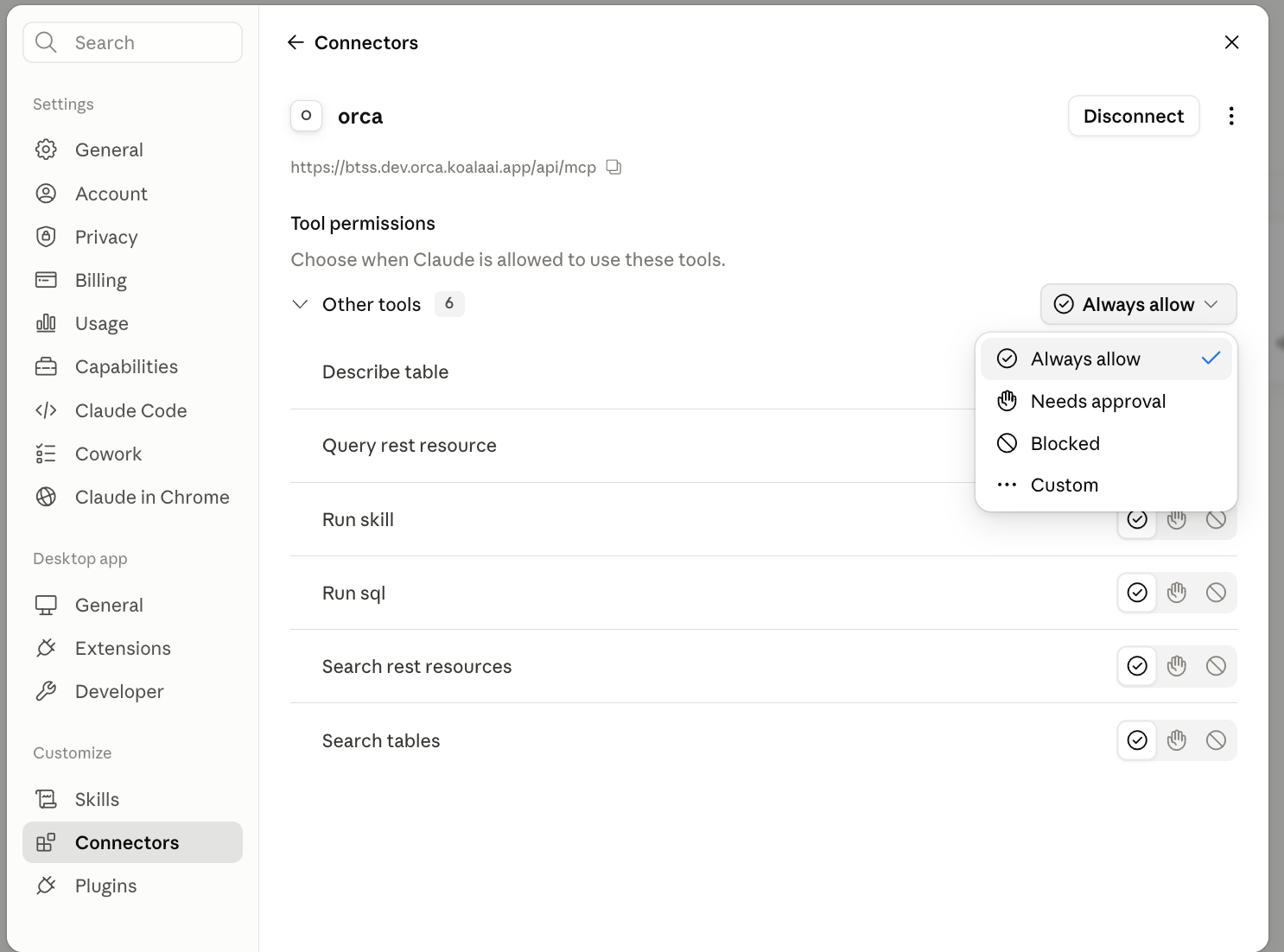
 Approve the tool permissions (**Always allow for all tools** is fine). Done — ask away in any chat.
 ## Claude Code (CLI)
Same flow — add the server once, then Claude Code opens your browser for the identical sign-in and consent. Run `/mcp` to trigger or inspect auth.
```bash theme={null}
claude mcp add --transport http orca
```
## How access stays governed
* You sign in to ORCA and approve which Oracle connection Claude may use.
* Claude receives a short-lived, scoped token — your Oracle credentials never leave ORCA.
* Every request runs within your own Oracle security, exactly as it does inside the app. Governed **REST** is the default path; **SQL**, if enabled on the connection, still asks for consent and labels its answers.
## Skills that keep getting better
The connector ships with **skills** — pre-built expert playbooks with pre-validated Oracle calls that a seasoned consultant would run. Claude reaches for the right one automatically when your question matches its shape.
Role assignments, data access, security profiles, and AOR for a user.
What shift someone works, schedules, rosters, and who's on a given day.
Headcount and worker-type breakdowns.
We ship **new skills continually** — and they're delivered to your connector automatically. Your ORCA connector gets smarter over time with nothing to install or configure on your side.
## Build dashboards, not just answers
Because ORCA answers over MCP, any **MCP client** — an AI assistant that speaks the protocol, such as Claude Desktop or Claude Code — can do more than return a single answer. Ask it to chart the results, assemble a report, or stand up a **live dashboard** over your governed Oracle data, and it queries ORCA for the numbers and builds the view for you. The data stays within your own Oracle security the whole time.
* "Build me a workforce dashboard: headcount by department and location, with month-over-month trend."
* "Chart active workers by location, then lay it out as a report I can share."
* "Track FBDI import processes for General Ledger and show their status at a glance."
## What you can ask
Plain-language questions across users, roles, security, HCM data, and analytics — a few to get started:
* "Investigate the gender distribution across the company and chart it."
* "Show me headcount by department, and flag any that grew more than 10% this year."
* "How many active workers do we have by location? Put it in a bar chart."
* "Audit the data-access permissions and security profiles for a given user."
* "Which roles grant access to payroll data, and how does row-level access resolve?"
* "List the FBDI import processes available for General Ledger."
* "Does user JSMITH exist, and what roles are assigned to them?"
* "Why can this user see that employee's record — walk me through it."
* "What shift is a given worker scheduled for this week?"
## Claude Code (CLI)
Same flow — add the server once, then Claude Code opens your browser for the identical sign-in and consent. Run `/mcp` to trigger or inspect auth.
```bash theme={null}
claude mcp add --transport http orca
```
## How access stays governed
* You sign in to ORCA and approve which Oracle connection Claude may use.
* Claude receives a short-lived, scoped token — your Oracle credentials never leave ORCA.
* Every request runs within your own Oracle security, exactly as it does inside the app. Governed **REST** is the default path; **SQL**, if enabled on the connection, still asks for consent and labels its answers.
## Skills that keep getting better
The connector ships with **skills** — pre-built expert playbooks with pre-validated Oracle calls that a seasoned consultant would run. Claude reaches for the right one automatically when your question matches its shape.
Role assignments, data access, security profiles, and AOR for a user.
What shift someone works, schedules, rosters, and who's on a given day.
Headcount and worker-type breakdowns.
We ship **new skills continually** — and they're delivered to your connector automatically. Your ORCA connector gets smarter over time with nothing to install or configure on your side.
## Build dashboards, not just answers
Because ORCA answers over MCP, any **MCP client** — an AI assistant that speaks the protocol, such as Claude Desktop or Claude Code — can do more than return a single answer. Ask it to chart the results, assemble a report, or stand up a **live dashboard** over your governed Oracle data, and it queries ORCA for the numbers and builds the view for you. The data stays within your own Oracle security the whole time.
* "Build me a workforce dashboard: headcount by department and location, with month-over-month trend."
* "Chart active workers by location, then lay it out as a report I can share."
* "Track FBDI import processes for General Ledger and show their status at a glance."
## What you can ask
Plain-language questions across users, roles, security, HCM data, and analytics — a few to get started:
* "Investigate the gender distribution across the company and chart it."
* "Show me headcount by department, and flag any that grew more than 10% this year."
* "How many active workers do we have by location? Put it in a bar chart."
* "Audit the data-access permissions and security profiles for a given user."
* "Which roles grant access to payroll data, and how does row-level access resolve?"
* "List the FBDI import processes available for General Ledger."
* "Does user JSMITH exist, and what roles are assigned to them?"
* "Why can this user see that employee's record — walk me through it."
* "What shift is a given worker scheduled for this week?"